
Help Center
Learn how to set up your account, register cattle correctly, use Shepskey identification, manage marketplace listings, report lost or spotted cattle, and understand the terms used across the system.
Getting started
- Choose the country where your cattle are kept, then create your account using your WhatsApp number, email address and secure PIN.
- Verify your WhatsApp number with the OTP sent to your phone.
- Create a kraal and select its district, chiefdom, village and location.
- Register your cattle under the correct kraal.
- Add the three display photos and all six nose images needed for identification.
Using Shepskey on WhatsApp
WhatsApp is Shepskey's quick-report channel, available to registered users whose WhatsApp number is linked to their account. You must be linked to at least one kraal to report one of your own cattle as lost. A spotted report only asks for the cattle's colour and a short note — it is filed against your registered kraal location, so there is no location to enter.
- Send hi, hello or another greeting to the Shepskey WhatsApp number.
- Shepskey replies with your name, your cattle's access status, and the main menu: 1. Report lost, 2. Report spotted, 3. Report Found.
- Typing a keyword like lost, spotted or found jumps straight into that flow from anywhere, even mid-conversation.
For spotted reports you only choose the cattle's colour and add a short note. Shepskey records the sighting against your registered kraal location.
How to register cattle
A cattle record stores the animal's name, breed, gender, age, colour markings, optional ear tag number, kraal and photos. Registering the animal first creates the record; adding clear photos makes the record useful for identification and recovery.
Colour markings
Colour is a broad category, not an exact shade match. Pick the closest of four options — when you select one, a small preview shows what it covers:
- Solid White — an all-white coat, any shade from bright white to cream.
- Solid Black — an all-black coat, from charcoal to jet black.
- Solid Brown — an all-brown coat across the whole range: a pale fawn Jersey and a dark Devon are both "Solid Brown".
- Mixed Pattern — any patched or multi-coloured coat, including black-and-white markings.
Required image set
Shepskey supports nine image positions for a complete cattle record:
- Front: a full front-facing view of the animal.
- Left side: a clear image of the animal's left side.
- Right side: a clear image of the animal's right side.
- Nose 1: the primary nose image selected by the system after all six nose photos are compared.
- Nose 2: a second nose image of the same animal.
- Nose 3: a third nose image of the same animal.
- Nose 4: a fourth nose image of the same animal.
- Nose 5: a fifth nose image of the same animal.
- Nose 6: a sixth nose image of the same animal.
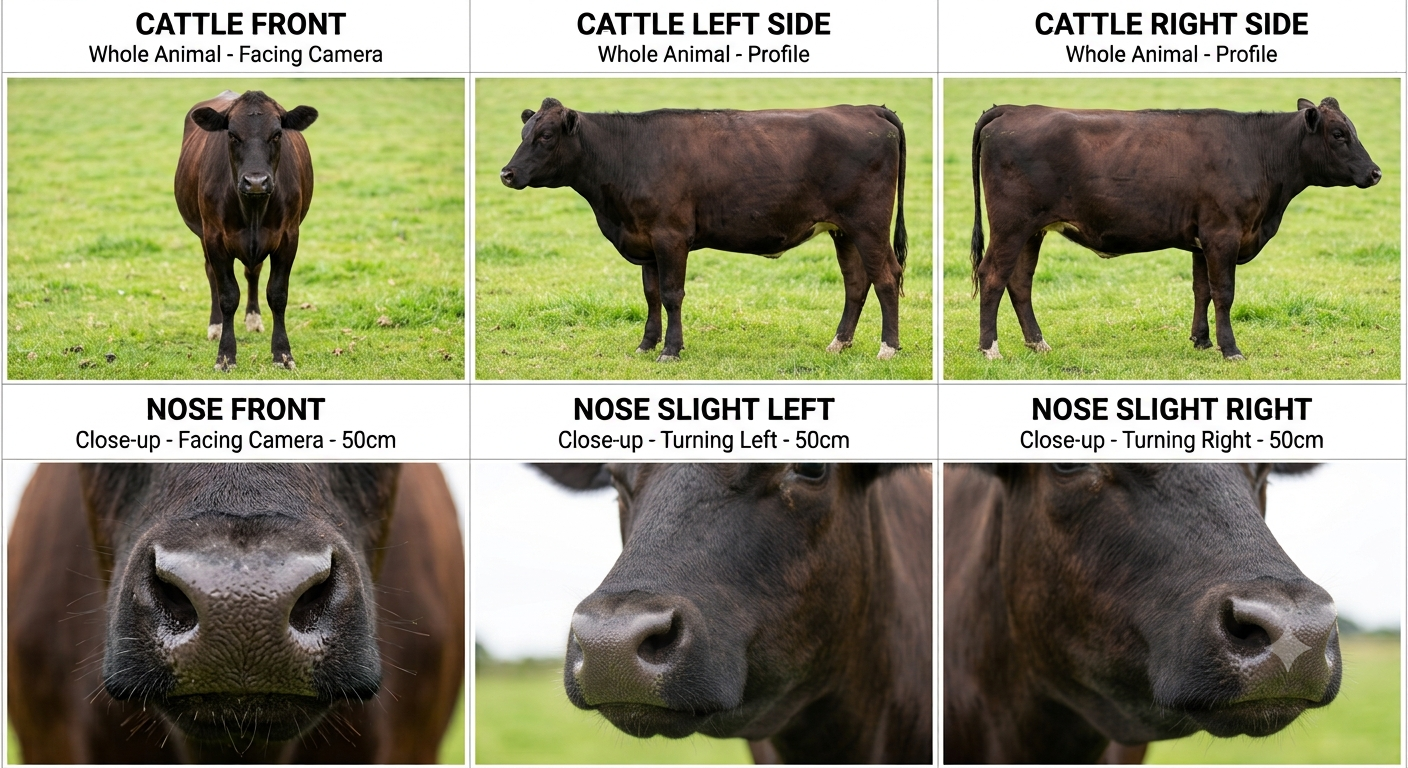
Photo quality tips
- Use good light and avoid dark, blurry or heavily shadowed images.
- Keep the animal steady and make sure the nose fills the nose-photo frame.
- Upload photos of one animal at a time.
- For side and front photos, include enough of the animal for visual confirmation.
- Do not reuse photos between different cattle records.
How cattle identification works
Identification uses a nose image, selected colour and selected location to search for possible matching cattle. The system compares the submitted nose image with registered nose images and returns possible matches with confidence scores. When a possible match is found, Shepskey can notify the potential owner that someone is searching for an animal that may be theirs. Colour (Solid White, Solid Black, Solid Brown or Mixed Pattern) is only a broad filter — pick the nearest category; the nose photo does the matching.
- Find Owner checks cattle within 48 km of the selected location, plus cattle currently marked lost in that country.
- Identification is a support tool. Final ownership decisions should still use community verification, records and lawful processes.
Where to run identification
Find Owner is portal-only — open Identify cattle from your Dashboard, select a nearby school and the cattle colour, then upload a clear nose photo. Shepskey searches that scope and shows possible matching cattle details when matches are found.
Marketplace listing guide
- Open one of your active cattle records.
- Select Sell.
- Enter price, currency, negotiability and reason for sale.
- Submit the listing. Your signed-in session is enough to confirm it — no OTP is required.
When a listing goes live, Shepskey notifies nearby users in the portal and sends a push notification where available. Removing cattle from sale also needs no OTP — your signed-in session is enough.
Ownership transfers
Use ownership transfer when cattle move from one owner to another owner's kraal. The cattle must be active, verified, identifiable and have full access before a transfer can start. For a change of owner, Shepskey requires OTP confirmation from both the previous owner and the new owner before completing the transfer.
Moving cattle between kraals owned by the same user can be completed as an internal kraal move. A completed transfer to a new owner resets the cattle's verified status — the new owner's Village Head needs to verify it again.
Lost and spotted cattle
- Report lost: use this when one of your registered cattle is missing.
- Report spotted: use this when you see cattle that may belong to someone else. Add a colour and description — it is filed against your registered kraal location, and no location, photo or cattle record is needed.
- Nearby reports: Shepskey can show active lost or spotted reports within 8 km of the relevant kraal location.
Reporting lost cattle on WhatsApp
- Send a greeting and choose 1. Report lost (or type "lost" from anywhere).
- Select the missing animal from your cattle list. The list is ordered by registration number.
- Send notes describing what happened or where the animal was last seen.
- Shepskey creates the lost report using the selected cattle's kraal location.
Reporting spotted cattle on WhatsApp
- Send a greeting and choose 2. Report spotted (or type "spotted" from anywhere).
- Select the cattle colour.
- Send notes describing where and how the animal was seen.
- Shepskey files the spotted report straight away against your registered kraal location — no location, photo or cattle record is needed for a spotted report.
Viewing nearby reports
Open Community Updates from your Dashboard and choose Spotted Cattle Alerts or Lost Cattle Alerts to see active reports within 8 km of your registered kraal, including the cattle image when available, notes, date reported, reporter name, reporter phone number and a WhatsApp chat link. Nearby users receive an in-portal notification for both report types; lost reports also send a push notification where available.
Verification
Verification confirms a cattle record with the Village Head of the owner's own village — there is no picker; once the front, left side and right side photos are captured, the owner sends the request straight to their village's Village Head, who confirms it from their signed-in account (no OTP is required).
Once cattle are verified, key display photos are locked to protect the integrity of the record. If an owner's village doesn't yet have a verified Village Head registered, verification isn't available until it does.
Chiefdom
Every account sees the Chiefdom tab in the portal. Once a kraal is linked to a district, chiefdom and village, the tab shows that community's information:
- View villages: everyone can explore the villages in their chiefdom, see each village's owner and cattle counts, then open read-only lists of its owners and their registered cattle.
- View notices: everyone can read the unexpired community notices available to them in the Chiefdom tab or under Community Updates.
- Create notice: verified Chiefs, Village Heads and Government Officials can post a notice with an expiry date. A Chief's notice reaches their chiefdom, a Village Head's reaches their own village, and a Government Official's reaches users with kraals in their district. Notices are portal notifications; a push notification is sent where available, subject to the notice rate limit.
A Village Head is also the person who verifies cattle for owners in their own village — see Verification above.
Terminology and definitions
The location or holding place where your cattle are kept. Cattle must belong to a kraal.
A broad coat category for the animal: Solid White, Solid Black, Solid Brown (each covering the full range of that shade), or Mixed Pattern for any patched or multi-coloured coat, including black-and-white. Used to narrow searches, not as an exact match.
A report that someone has seen cattle that may be lost or belong to another owner.
A report created by an owner when registered cattle are missing.
The process of moving cattle ownership from one user's kraal to another user's kraal.
A cattle record is ready for cattle identification when its six nose photos are clear and consistent.
Confirmation of a cattle record by the Village Head registered for the owner's own village, from their signed-in account.
A one-time code sent to confirm sensitive actions such as account verification or ownership transfer.
A score showing how closely a submitted nose image matches registered nose images. It supports review but does not replace ownership proof.
A cattle status showing that the owner has listed the animal on the marketplace.
An active access state that allows the animal to use all available ownership, marketplace and transfer features.
An access state after the initial period ends without payment. The cattle record stays available, but selling and transferring are unavailable until full access is restored.
A private Shepskey review created when a newly registered animal may match a lost animal. It is a lead for review, not a finding of wrongdoing; sale and transfer stay unavailable while it is unresolved.
A cattle status used when the animal has died. Marking cattle deceased removes active sale listings.